

Start here
How to use kakemono
kakemono runs in the background. You talk to it through its icon: in the menu bar on a Mac, in the system tray on Windows and Linux. Click the icon to see what it can do:
- Next sets a new wallpaper.
- Pause stops the timer, if you turned it on.
- Favorite keeps the current wallpaper.
- Show Picker opens a strip of pictures to choose from.
- Settings opens the window with every option.
Get a new wallpaper
Section titled “Get a new wallpaper”Click the kakemono icon, then Next. kakemono downloads a picture from one of your sources and puts it on your desktop.
New installs never change the wallpaper on their own. To change it on a timer, see Change it every 30 minutes.
Choose one from the picker
Section titled “Choose one from the picker”Click the icon, then Show Picker. A strip of pictures opens along the bottom of your screen. The home page has a demo of it.
- Click a picture to make it your wallpaper.
- Or use the arrow keys to move, and press Enter to set it.
- Press F to add the picture to your favorites.
- Press Esc to close the strip.
The tabs on the left side of the strip switch between new pictures from your sources, ones you already downloaded, your own folders, and your favorites.
Change it every 30 minutes
Section titled “Change it every 30 minutes”Open Settings from the icon and tick Change wallpaper every. You can change the 30 to any number of minutes or hours.
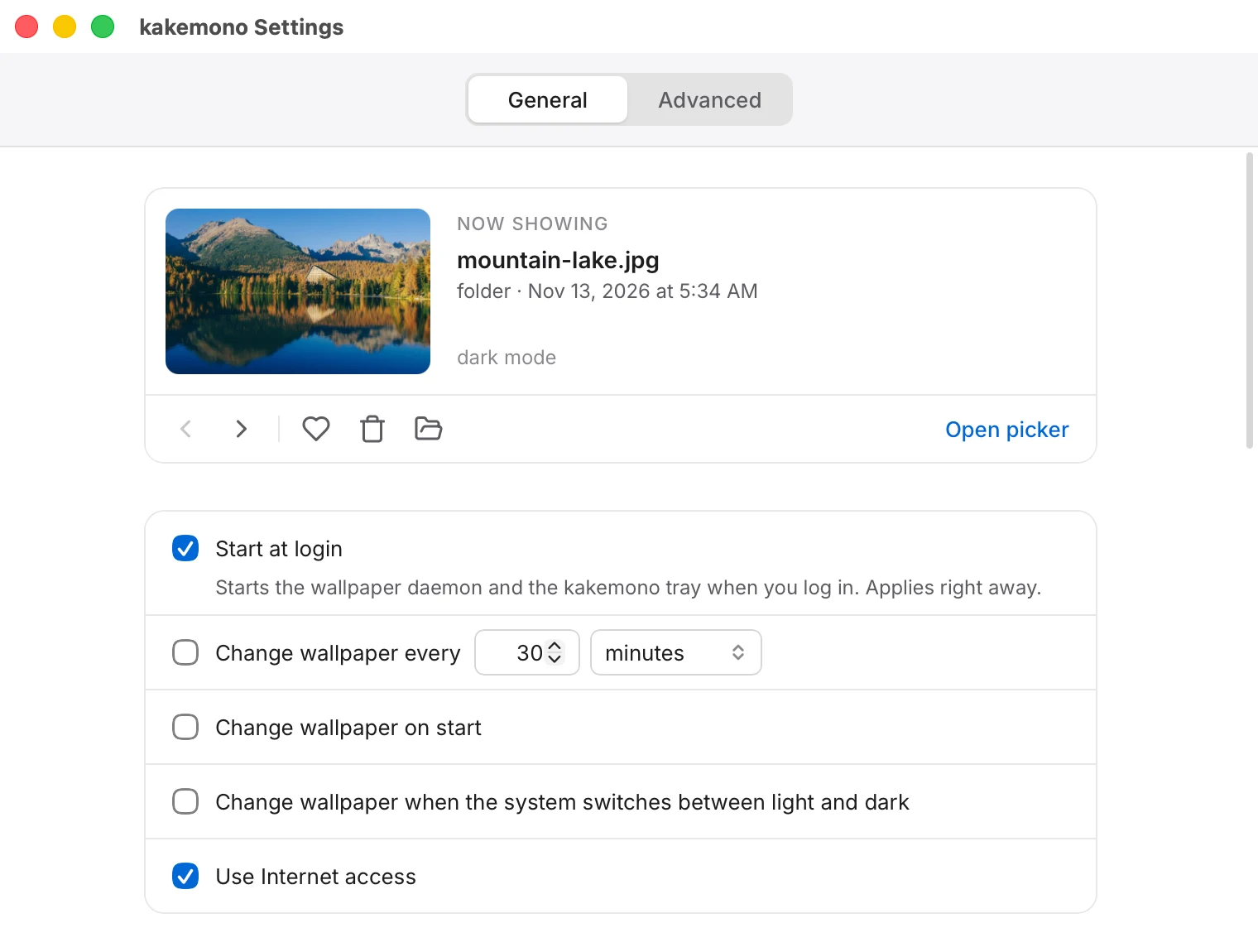
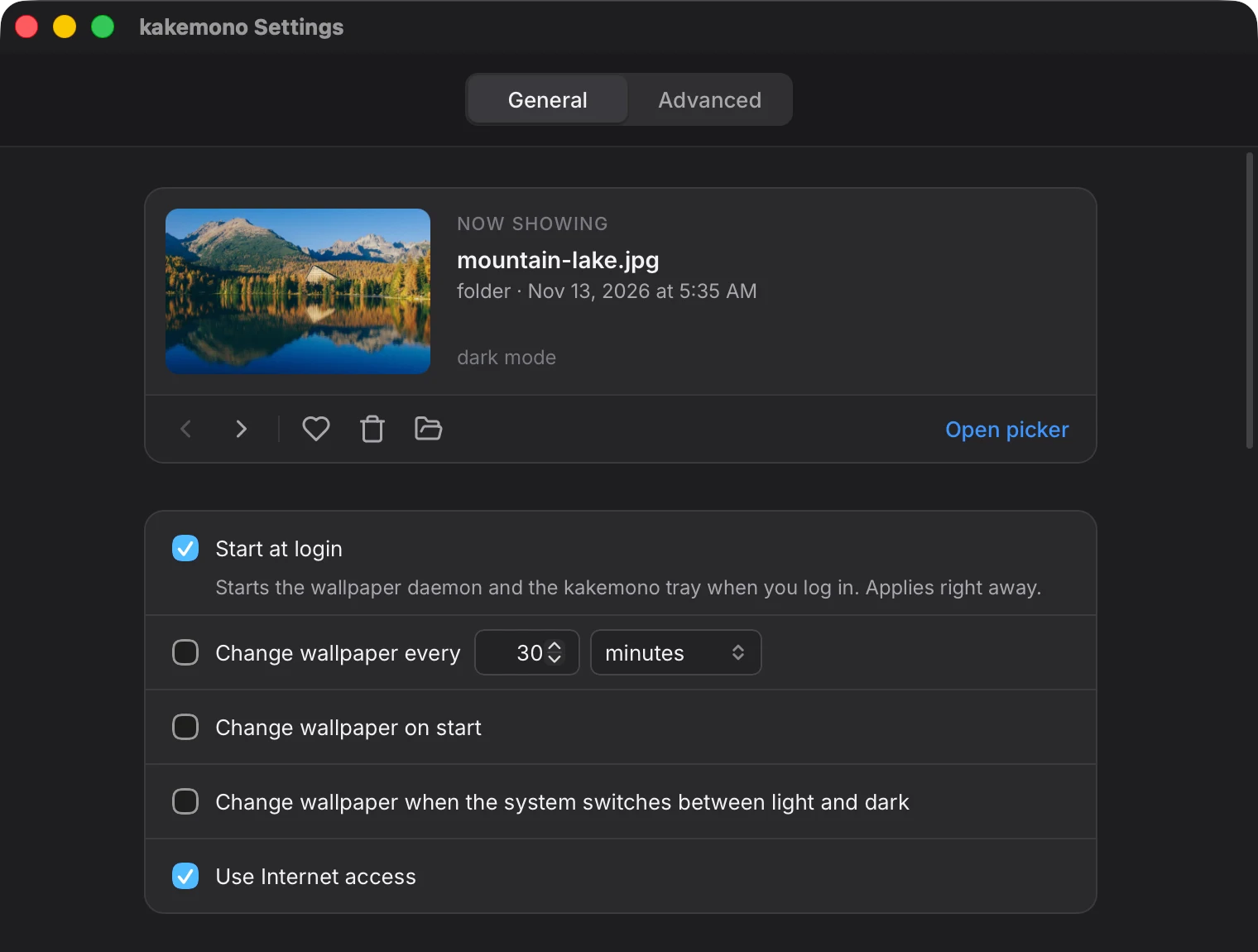
Other options on the same screen:
- Start at login starts kakemono when you turn on your computer.
- Change wallpaper on start sets a new picture each time kakemono starts.
- Change wallpaper when the system switches between light and dark sets a new picture when your computer changes mode, for example at sunset.
Go back, keep, or throw away
Section titled “Go back, keep, or throw away”The top of Settings shows the current wallpaper. The buttons under it:
- The arrows go back to an earlier wallpaper, and forward again.
- Favorite (the heart) copies the picture to your favorites folder, Pictures/Wallpapers/favorites.
- Move to Trash removes the picture and sets the next one.
- The folder button shows the picture’s file on your computer.
Only dark pictures, only big pictures
Section titled “Only dark pictures, only big pictures”Further down in Settings, under When possible, use images that…, you can ask for pictures that are landscape, big enough for your screen, dark or light, or close to a colour you choose. If no picture matches every choice, kakemono uses the closest one, so your wallpaper still changes.
Updates
Section titled “Updates”When a new version is out, Settings shows a banner at the top. Click Update, and kakemono installs it and restarts. If you installed with Homebrew, Scoop or a Linux package, see Updating.
A keyboard shortcut
Section titled “A keyboard shortcut”kakemono has no shortcut of its own, but you can make one that sets the next wallpaper. Settings > General > Shortcuts shows how on your system.