

Start here
Install on a Mac
-
Download the app for your Mac:
Apple silicon IntelNot sure which Mac you have? Open the Apple menu and choose About This Mac. If it says Chip: Apple M1 (or M2, M3, M4), you have Apple silicon. If it says Processor: Intel, you have Intel.
-
Open the downloaded file and drag kakemono into Applications.
-
Open kakemono from Applications. macOS says that “kakemono” is damaged and can’t be opened.
The app isn’t damaged. macOS shows this for apps that aren’t signed with a paid Apple developer certificate, and kakemono isn’t signed yet. To tell macOS the app is safe:
-
Press Command + Space, type Terminal, and press Return.
-
Paste this line into the Terminal window and press Return:
Terminal xattr -dr com.apple.quarantine /Applications/kakemono.app -
Close Terminal.
You only do this once.
-
-
Open kakemono from Applications again. Its icon appears in the menu bar, at the top right of your screen.
The first time you open it
A Welcome window walks you through four short screens. On the third one you can change the wallpaper right away, turn on the timer, and choose whether kakemono starts when you log in.
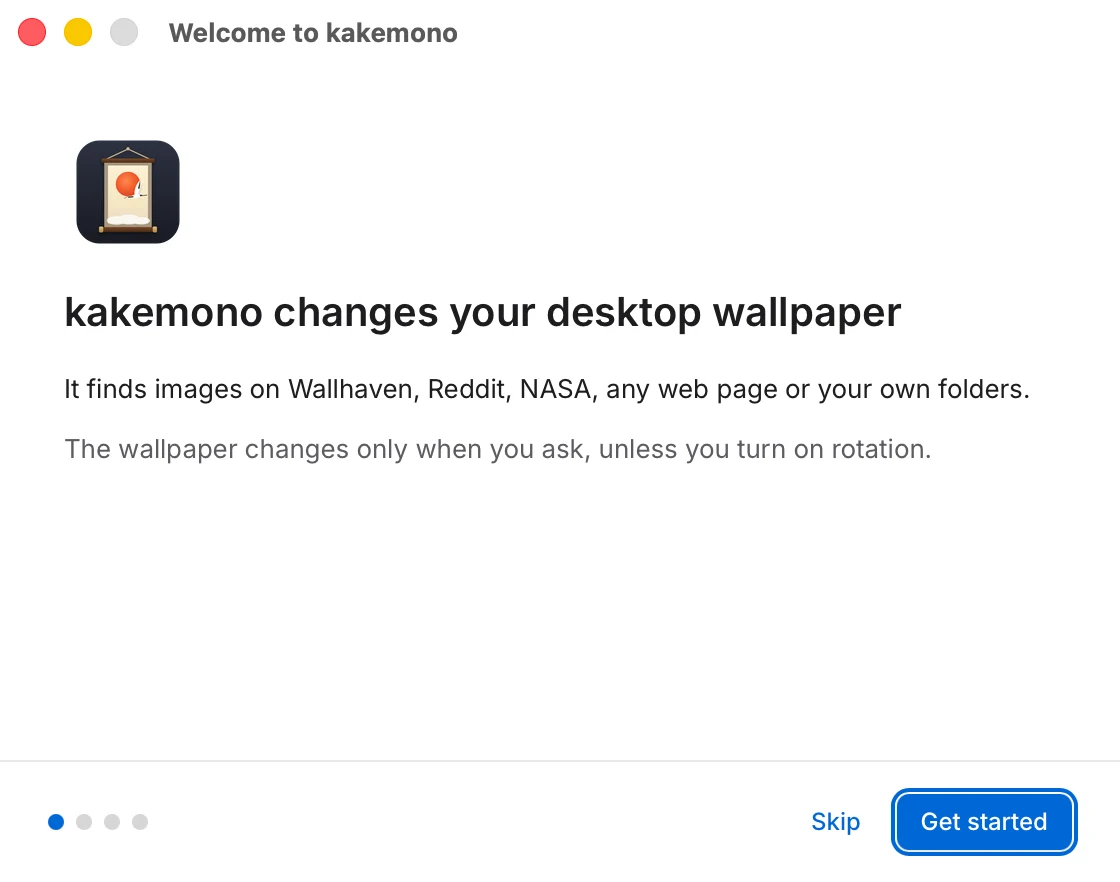
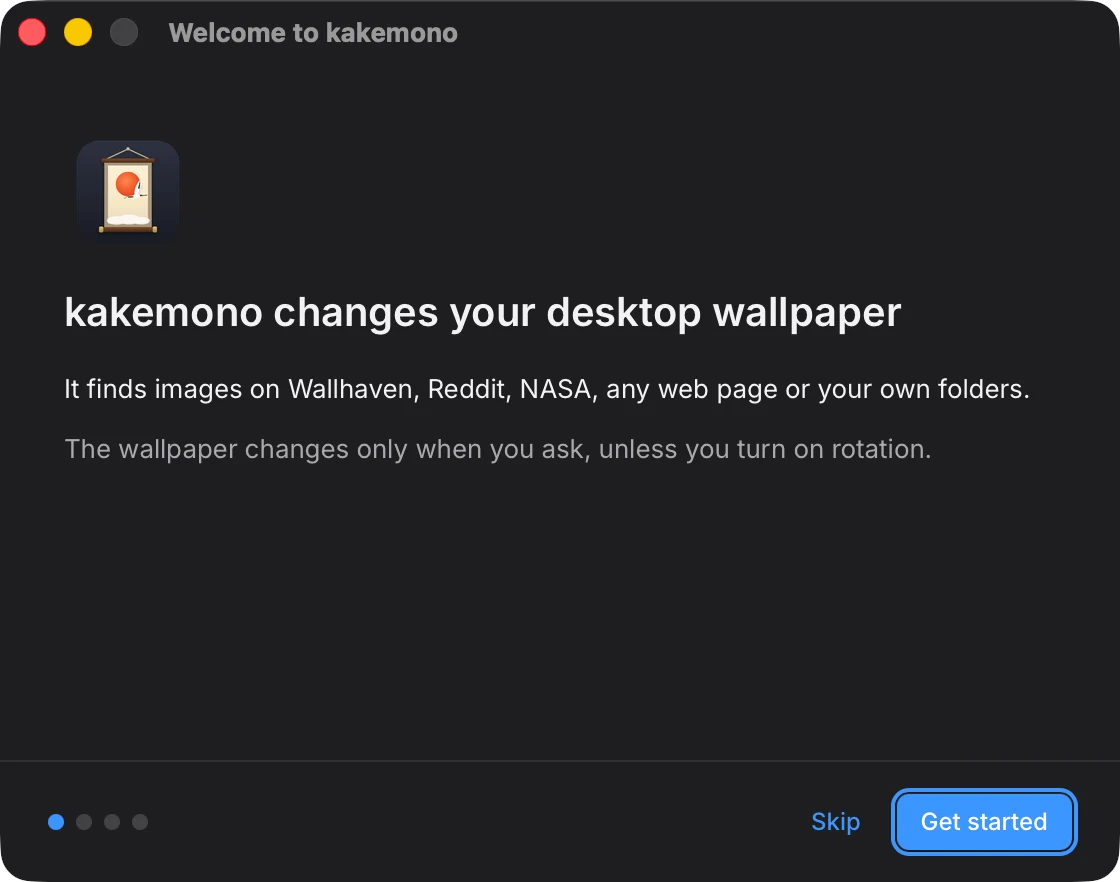
kakemono doesn’t change your wallpaper until you ask. Next: How to use kakemono.